 1.
1.Start with a new image with a white background, and to be on the
safe side make it about 800x800 px. The tentacles in this tutorial's
example will be plastic-looking, but you can create any type you
want... chrome, shiny, various colors... whatever you can come up with.
Start by selecting the ','black')" href="javascript:void(0)">Polygon Lasso
tool from the toolbar and, as neatly as you can, draw a triangle
pointing down. You will probably need to zoom out (shrink the image
view) while doing this.
Once you have your triangle, fill the selection in with your color of choice - the example uses #8FCFFF. Deselect (CTRL+D).

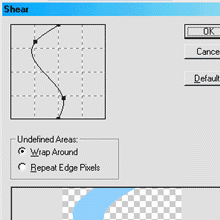
Next go to Filter » Distort » Shear. What you need to do here
is click along the line and drag parts to make it "squiggle" like in
the example below. Keep an eye on the preview window and once you're
happy with the results, click OK.
Now use Free Transform (CTRL+T) to rotate or resize your tentacle to
taste, and press enter to apply it. No doubt you're quite impressed
with your, eh... squiggly... but it still looks rather flat and dull at
this point (sorry to burst your bubble). It's time to grab the Airbrush
(first select the ','black')" href="javascript:void(0)">Paintbrush tool, and choose the ','black')" href="javascript:void(0)">Airbrush
icon in the Options bar). Select the tentacle shape (hold CTRL and
click on the layer), then create a new layer above the tentacle one.
Set the Airbrush to a size of around 200-300px with 100% opacity, and
paint around the edges of the tentacle to give it a rounded beveled
effect. You may want to mess with the layer's opacity to get this to
look how you like it. Refer to the sample below if you need to.

Now it's just a case of using the airbrush to paint highlights and
shadows. Hold CTRL and click on the tentacle layer to select it, and
make a new layer (you will want to do each of the following parts on
their own separate layer). Next, choose an aqua color from your color
palette, and begin adding highlights to the tentacle.
As you complete each layer of highlights, you should blur the parts you've airbrushed a bit using Filter » Blur » Gaussian Blur
(that's why you must do each part on a new layer). In the example
below, an aqua highlight and a white highlight have been added.

Now we're going to darken up the edges a bit. Hold CTRL and click on
the original tentacle shape layer (Layer 1). Set a darker blue shade as
your foreground color and go to Edit » Stroke - use a setting of about 2 or whatever you feel looks best.
You can now add a faint drop shadow (in the example, the drop shadow is
a faint dark blue shade... if your tentacle is a different color, you
will probably want to use a darker shade of whatever color you used).
If one tentacle is cool, wouldn't lotsa tentacles be even better? If
you think you might want to go back and change things later, you should
first make a set of copies of your tentacle's layers (drag each one to
the New Layer icon... if you like to stay organized, you might want to
move these copies into a Layer Set to group them together... Layer » New » Layer Set).
Now, merge the layers of your tentacle together into one single layer
and make several copies of that layer. Once you have your duplicate
copies, begin to rotate and transform each of them in unique ways (see Edit » Transform).
You may even want to do the "Shear" filter on some of them again to
reshape them (see Step 2). Remember to keep the flat non-pointy side of
the tentacles positioned "outside" of the visible work area of your
image or underneath part of another tentacle, or things will look
rather strange. You also don't have to always have the point of the
tentacle showing on all the copies (notice the one below that only has
its middle section visible).

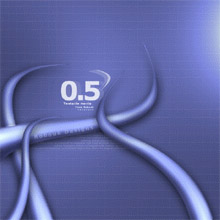
Here's another example of what you might come up with using this
technique. Remember you don't have to stick with making the tentacles
look like translucent plastic... you could make them solid, shiny,
metallic, rough, etc. Have fun.


/https%3A%2F%2Fassets.over-blog.com%2Ft%2Fcedistic%2Fcamera.png)
/https%3A%2F%2Fekladata.com%2FB5VW6YdOtDWtmlZW893lrhKd7Ls.jpg)
/https%3A%2F%2Fekladata.com%2FXSs1hKeGMVGYLwSqk1xodwYJBs4.jpg)
/https%3A%2F%2Fekladata.com%2FUzX14cLV3WowjXH-YbUKs6Qyc9E.jpg)